One phone stays in the nursery and watches. Your phone, and the people you invite, see and hear the room. Here is each feature, with BubCue development screens where they help and what to know about it.
Features marked Experimental can miss or mistake things, as the app itself says.
From the kitchen, the couch or the garden.
See and hear
iPhone
Android
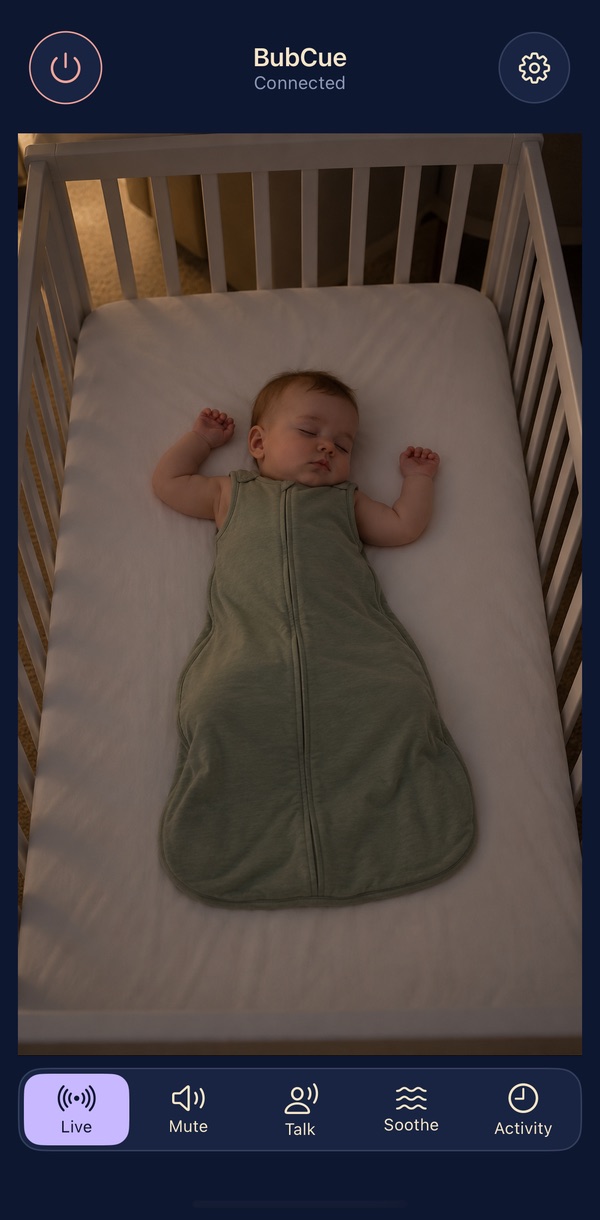
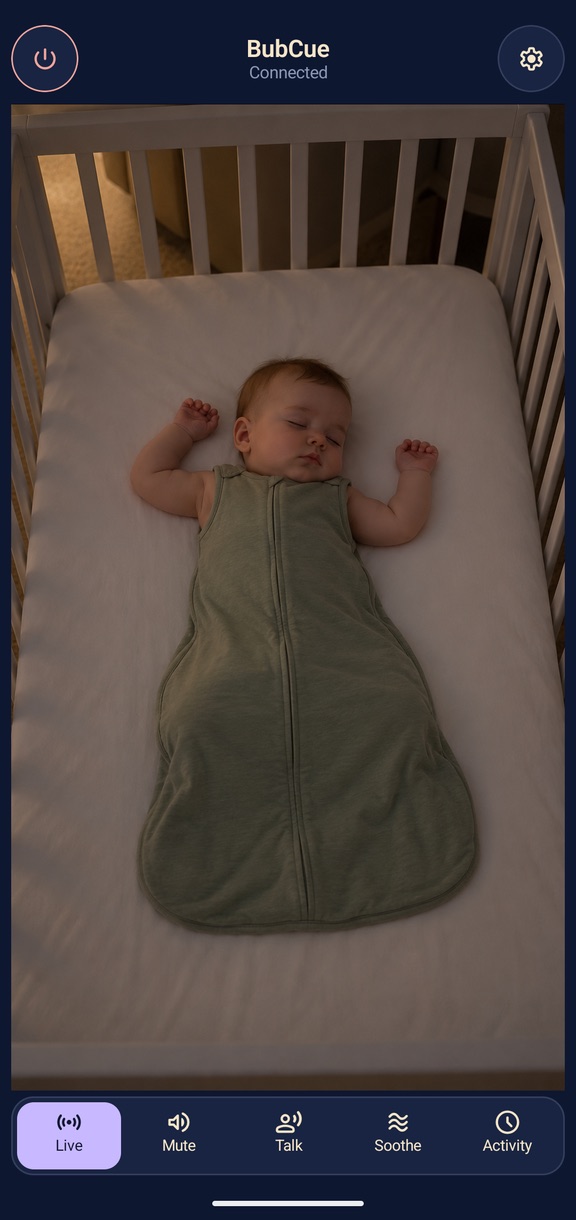
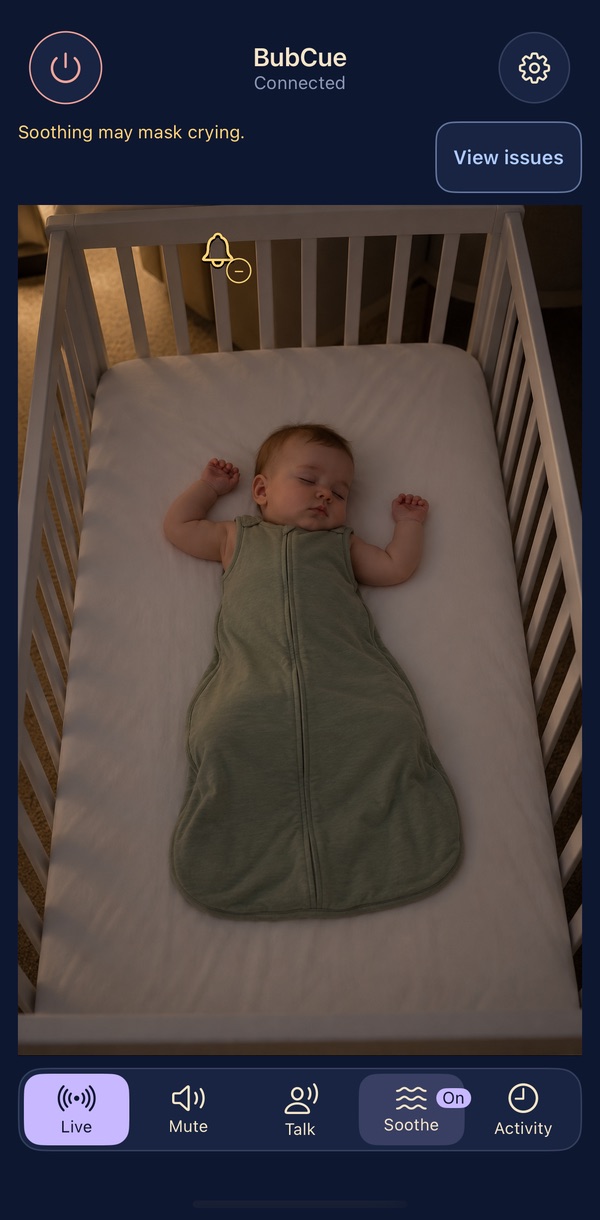
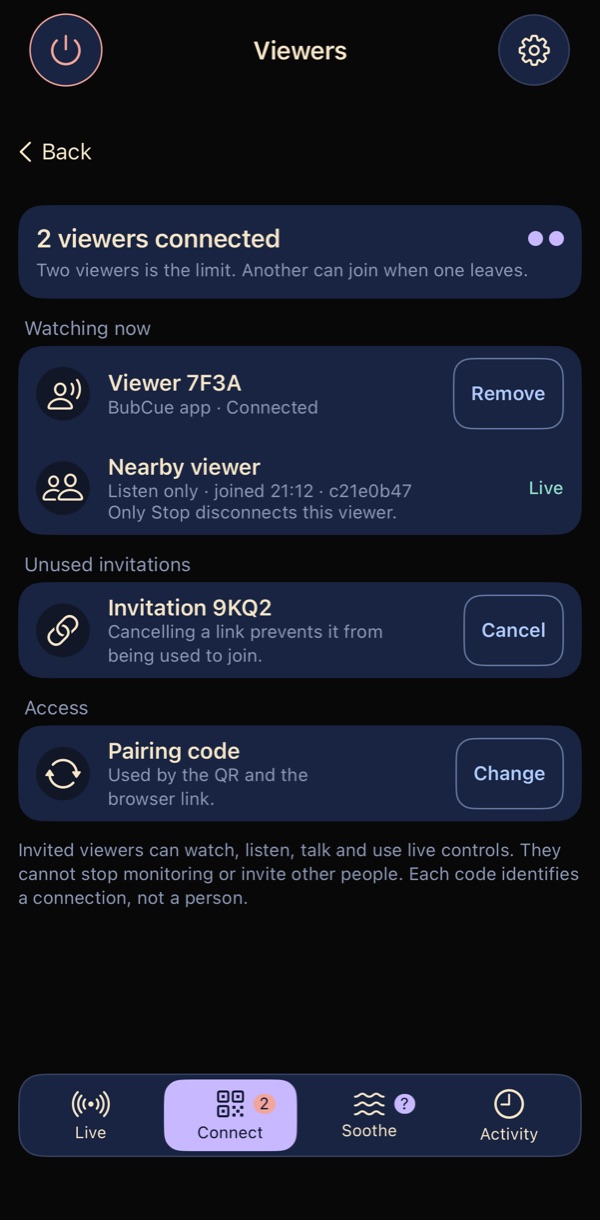
BubCue development screens with an AI-generated nursery image. Not a recorded monitoring session.
Live video and sound
The phone in the nursery sends live video and sound to your phone: across the house on your Wi-Fi, or from another place over the internet, where networks allow. Shown here on iPhone and Android.
Good to know: an iPhone in the nursery stays open, plugged in and with its screen on, because locking it pauses monitoring. An Android phone in the nursery can monitor with its screen off while plugged in. Watching from another place needs internet at both ends, and some networks don’t allow the direct connection BubCue uses.
Keep listening while you use your phone
Your phone keeps playing the nursery sound when it is locked or another app is open. Picture-in-picture keeps a small video window on screen over other apps, on iPhone and Android.
Good to know: a locked phone may not play alert sounds. Calls, Focus or Do Not Disturb, the mute switch, the volume and closing BubCue can stop sound or alerts, and some phones let you turn the small window off in their settings.
Zoom in on your screen
Pinch to enlarge the picture up to 4× on your own phone. This is display zoom: it changes only your view, not what the camera captures or sends.
For when you’re in another room.
Alerts
Sound alert settings
Sound alerts
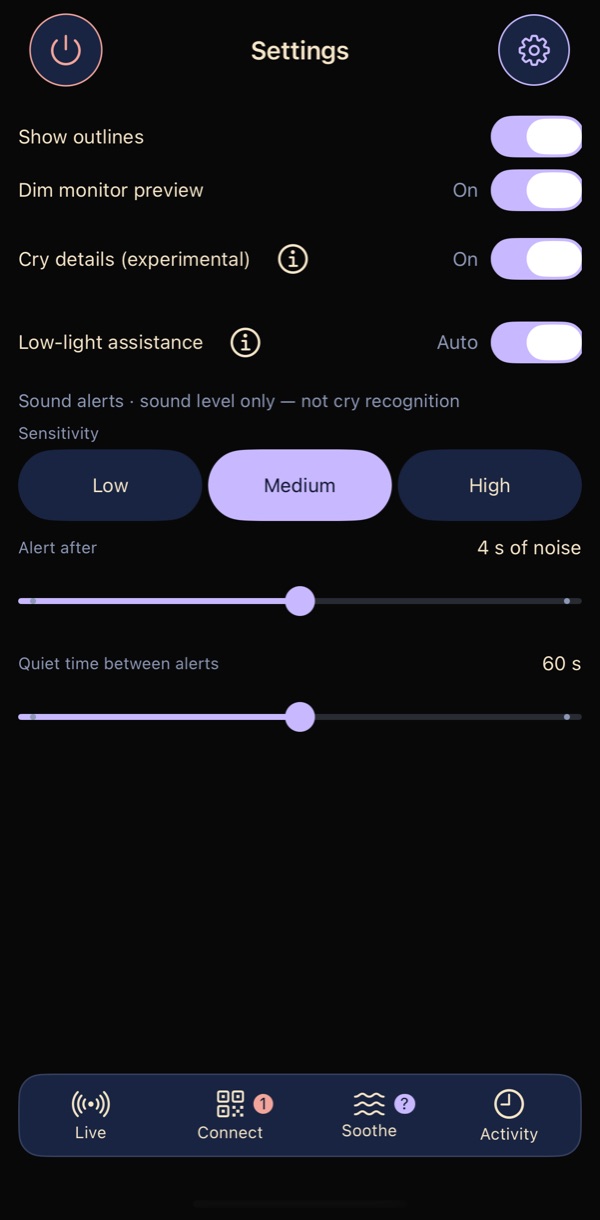
When sound in the room stays above the level you choose, your phone plays a tone, vibrates and shows a card. You set the sensitivity, how long the sound must last, and the quiet time between alerts.
Good to know: sound level only — not cry recognition. Sound alerts pause while you talk, while soothing plays and while a voice clip is recorded.
A cry alert
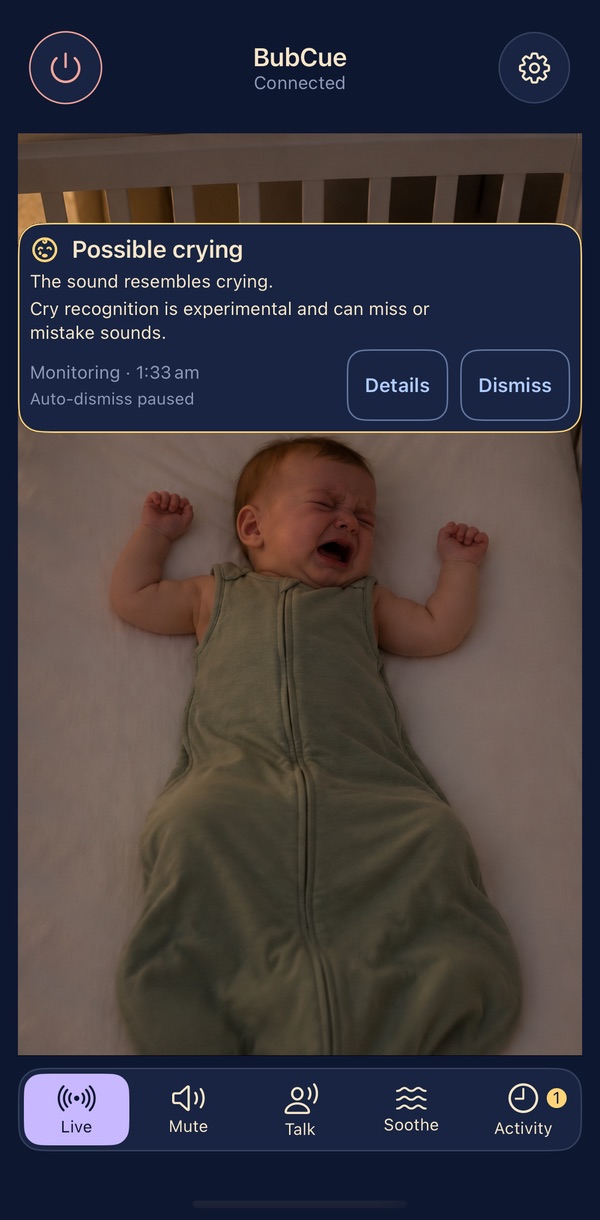
BubCue development screen with an AI-generated nursery image. Not a recorded monitoring session.
Experimental
Cry alerts
A sound model on the nursery phone flags sound that resembles crying and alerts your phone. It is on by default and runs only on the nursery phone.
Good to know: cry recognition is experimental and can miss or mistake sounds. Soothing sounds or a white-noise machine can make it miss crying.
Experimental
Cry details
An optional setting, on by default, that adds how long possible crying lasted, your recent cry alerts and a general list of things to try. Sometimes it also shows a guess at the cry type: “Might be hungry?” or “Might be tired?”. You can turn it off in the nursery phone’s settings.
Good to know: Experimental guess. Development testing has not demonstrated reliable identification of hunger or tiredness. Independent confirmatory validation has not been completed. The guess can be wrong. BubCue does not know why a baby is crying. Suggestion only — you know your baby best.
The card your phone shows
Experimental
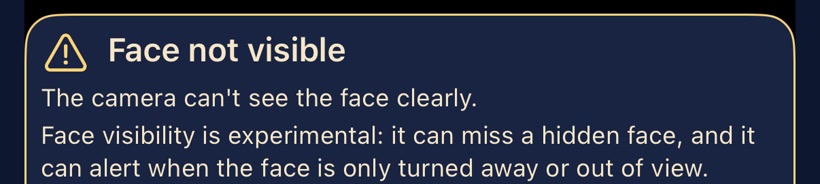
Face visibility
When video is on, the nursery phone looks for a face in the sleep area of the picture. After detecting a face, the app can show a notice, “Face not visible”, if camera analysis stops detecting it. It cannot determine why. Real-world detection performance has not been established. This feature does not assess breathing, health or safety. The analysis runs on the nursery phone, in memory; no image is saved.
Good to know: face visibility is experimental: it can miss a hidden face, and it can alert when the face is only turned away or out of view. It sends no alert until it has seen the face. It shows “unavailable” when the camera moves, the light is too dark or too bright, or the phone is too warm, and it is not available on Android 9 phones. It never shows that a baby is fine. BubCue is not a medical device: check on your baby yourself.
How alerts reach you
Alerts travel over the live connection to each connected parent phone: a tone, a vibration and a card in BubCue. With BubCue in the background or in picture-in-picture, you get the tone, the vibration and a bell on the small window. “Test alert sound & vibration” in your phone’s BubCue settings plays the alert on that phone.
Good to know: alerts don’t appear as lock-screen notifications, a locked phone may not play them, and none arrives if no parent phone is connected or BubCue has been closed. The test checks your phone’s tone and vibration, not the nursery phone or the connection.
Because routers restart at midnight.
When something stops
iPhone
Android
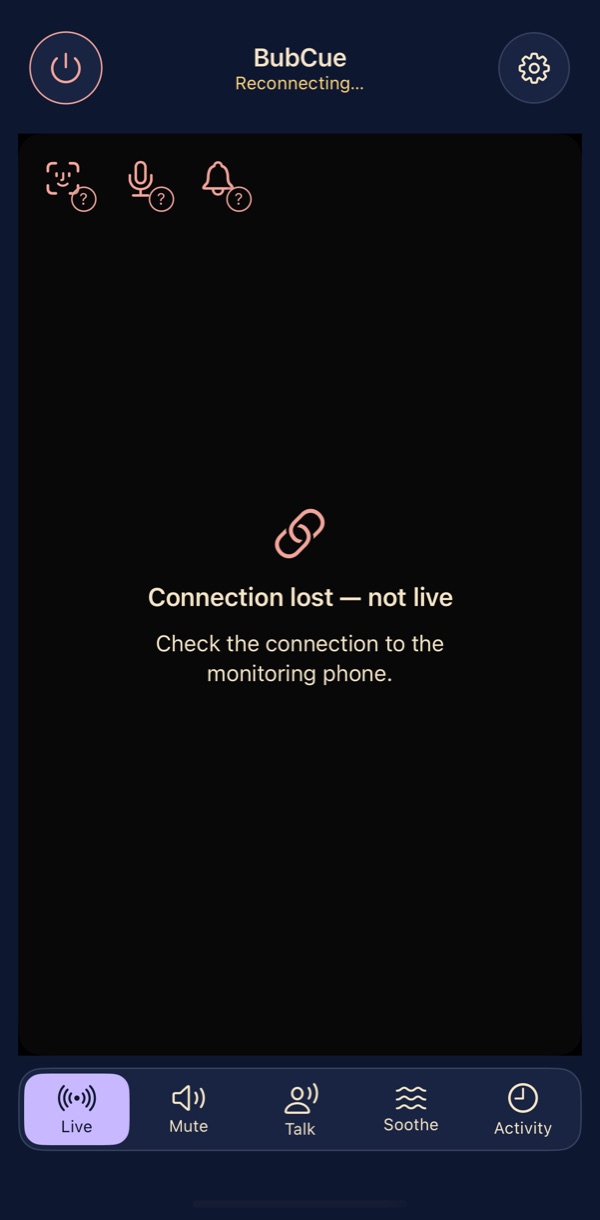
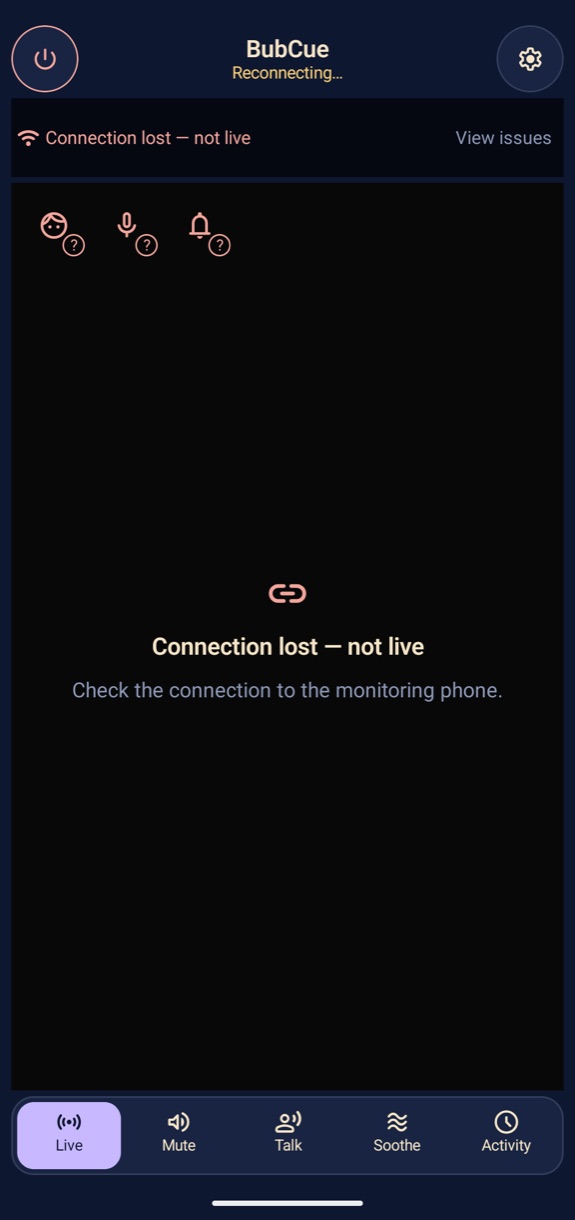
Connection, camera and microphone status
After a short Wi-Fi drop, your phone reconnects on its own. While it is disconnected it says “Connection lost — not live”, and camera, microphone and alert status each have their own badge. A warning stays until that part reports working again; closing a notice does not clear it. Activity records when parts were reported unavailable.
Good to know: a still picture or silence is not proof that monitoring is working. When the connection is lost, your phone plays a sound and vibrates about every minute until it’s back, but other alerts can’t reach it while the connection is down.
If the nursery phone stops
The phone’s power management (especially on some Android brands), a crash or overheating can stop BubCue, and connected parent phones then show a connection warning and play a reminder sound until it’s back. On phones that report their temperature, BubCue stops soothing and pauses low-light assistance when the nursery phone gets too warm, and says so.
Good to know: BubCue does not restart itself. After a restart, every viewer joins again with the new QR code, browser link or a new invitation.
A familiar voice, without opening the door.
Talk and soothe
Hold to talk
BubCue development screen with an AI-generated nursery image. Not a recorded monitoring session.
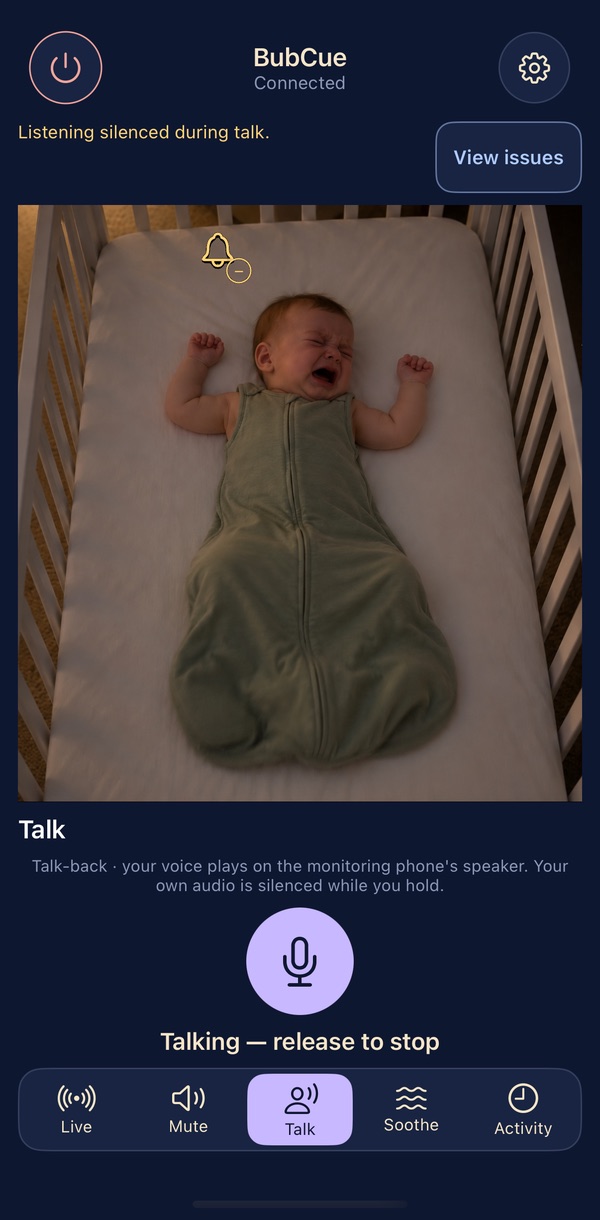
Hold to talk
Hold the Talk button and your voice plays on the nursery phone’s speaker. Release to stop.
Good to know: while you hold, your own listening is silenced and sound alerts pause. Talk works from the BubCue app, not from a web browser.
Soothe playing
BubCue development screen with an AI-generated nursery image. Not a recorded monitoring session.
Soothe
Play white, pink or brown noise, a lullaby, or a voice clip you record on the nursery phone (up to three clips of up to 60 seconds). You set the volume and a timer, and you start and stop it: nothing plays by itself.
Good to know: soothing may mask crying. Sound alerts pause while it plays, and cry alerts can miss crying. A voice clip can pick up nearby sounds, including your baby. Keep the volume low and the phone away from the cot.
Across the hall. Across the country.
Family and viewers
iPhone
Android
Two viewers, and the Viewers page
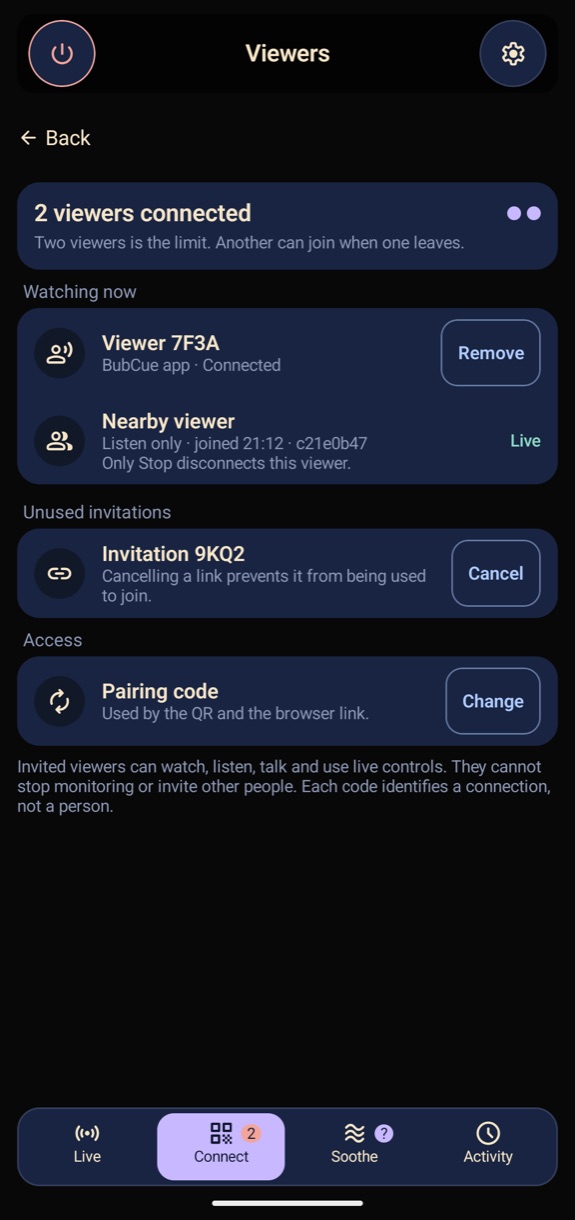
Up to two phones or computers can watch at once. They join by scanning the nursery phone’s QR code, opening its browser link on the same Wi-Fi, or with an invitation link it shares. Under our current plan, invited viewers don’t need their own subscription; pricing and purchase terms are not final. The Viewers page lists each connection and lets you remove an app viewer, cancel an unused invitation or change the pairing code.
Good to know: anyone who has the current QR code, the browser link or an unused invitation can join without asking you, so share them only with people you trust. A browser viewer is disconnected only by Stop. Changing the pairing code stops new joins with the old code; people already watching keep watching. Invited viewers can watch, listen, talk and use live controls; they cannot stop monitoring or invite other people. Access ends when monitoring stops.
Watch from somewhere else
Away from home, a phone that has joined connects to the nursery phone over the internet: video goes directly between the two phones, encrypted, with no video relay. When you leave the house, your phone tries to reconnect over the internet and shows “Connection lost — not live” until it does. Grandparents or a travelling parent can join with an invitation.
Good to know: both ends need internet. Some networks never allow a direct connection; BubCue then can’t connect from there, shows that it isn’t live and keeps trying, and never sends your video through a relay instead. Watching on mobile data uses your data allowance.
Watch on a computer
A laptop on the same Wi-Fi can open the nursery phone’s browser link to watch and listen. It counts as one of the two viewers.
Good to know: same Wi-Fi only. It starts muted until you click Unmute, it has no talk, and alerts are not promised while the tab is hidden. Only Stop on the nursery phone disconnects it. Its setup page uses plain HTTP, so someone else on the same network could tamper with it: use it only on your own home network.
Over the morning coffee.
Activity
Activity
What happened overnight
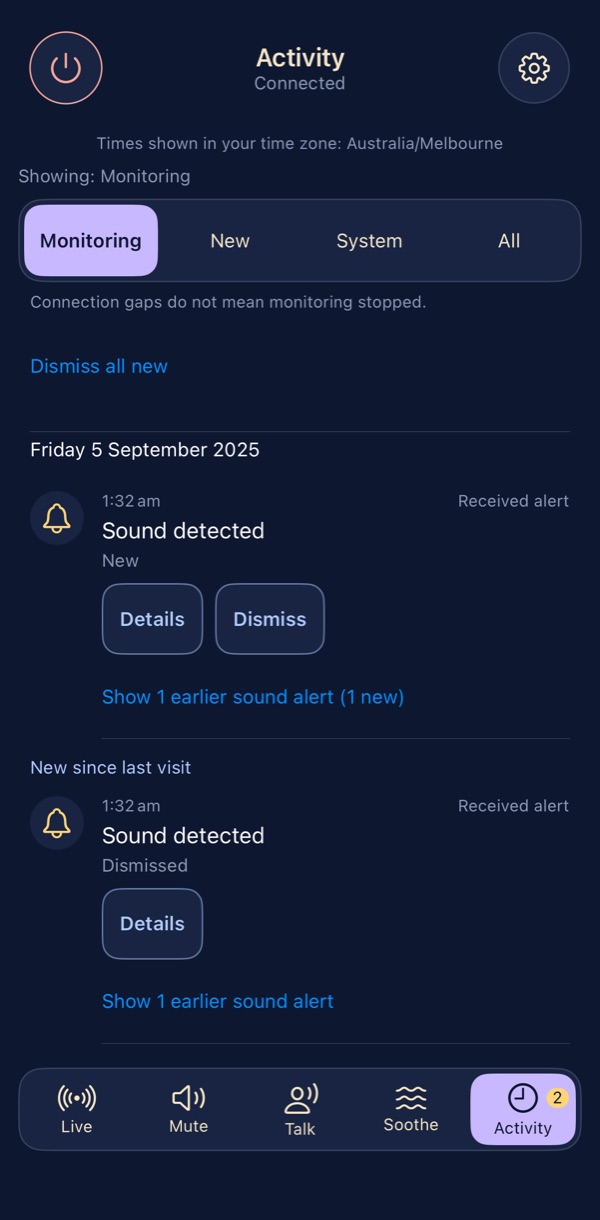
Activity lists each alert with its time, one entry per cry with runs of sound alerts grouped, and the times when the camera, microphone or alerts were reported unavailable. You can choose to save it on that phone, share it with your parent phones on the same home network, or export it.
Good to know: Activity is not a sleep log: a quiet period does not mean your baby was asleep. A nursery phone that has stopped cannot record its own outage. Unless you choose to save it, Activity is cleared when you stop monitoring or restart the app.
Lights down for bedtime.
Night and placement
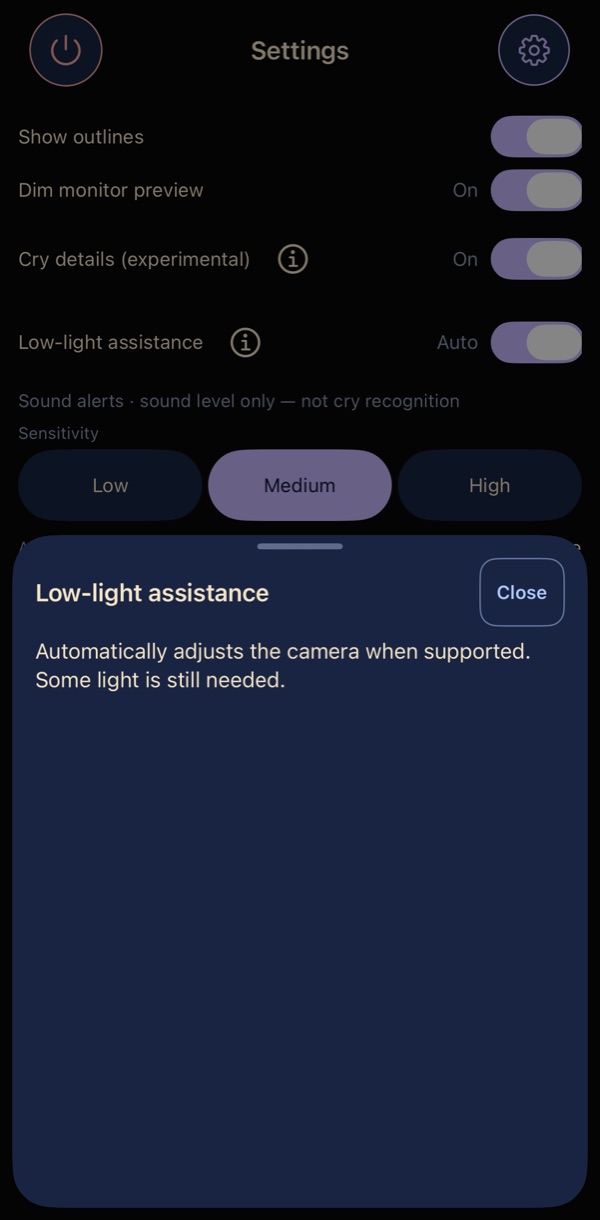
Low-light assistance
Low-light assistance
Set to Auto by default, it automatically adjusts the camera when the phone supports it. The app’s screens are dark, and the nursery phone can dim its own preview.
Good to know: phone cameras do not have infrared night vision. Some light is still needed; a completely dark room may need dedicated hardware. How well it works varies between phone makers and models. On phones that report their temperature, it pauses while the phone cools.
Face outlines while you set up
While you set up, the nursery phone can draw outlines over a face it detects, as a guide for framing the camera. Connected BubCue apps show the same outlines while Show outlines is on. Audio and image analysis runs on the nursery phone, and the outlines are not saved.
Good to know: outlines are a framing aid only. They do not assess breathing, health or safety, and real-world detection performance has not been established. They need a clear, well-lit view, and on some phones they may not appear even when the face is in clear view. They never raise an alert. Start hides them; the nursery phone’s Settings > Show outlines brings them back for that session. A web browser doesn’t show them, and neither does picture-in-picture.
Placing the nursery phone
Put the phone in a stable stand or mount outside the cot, with the phone, the mount and every cable well out of your baby’s reach. Keep it plugged in. Before bed, check the picture and the sound, and play the alert test on your phone.
Keep the cot clear of pillows, toys and loose bedding. A baby monitor does not replace safe-sleep guidance.
BubCue does not measure your baby’s breathing, heart rate, temperature or movement, and it does not record or save live video. See what BubCue is not.
The phone pictures are BubCue development screens with the status bar cropped off. The baby in every picture is AI-generated, and no picture is a recorded monitoring session.